How to View DICOM Medical Images in Your Browser for Free (CT, MRI, X‑ray)
Open DICOM files from CT, MRI, X‑ray and ultrasound directly in your browser with professional tools like window/level presets, measurements, cine playback and full metadata — all processed locally for better privacy.
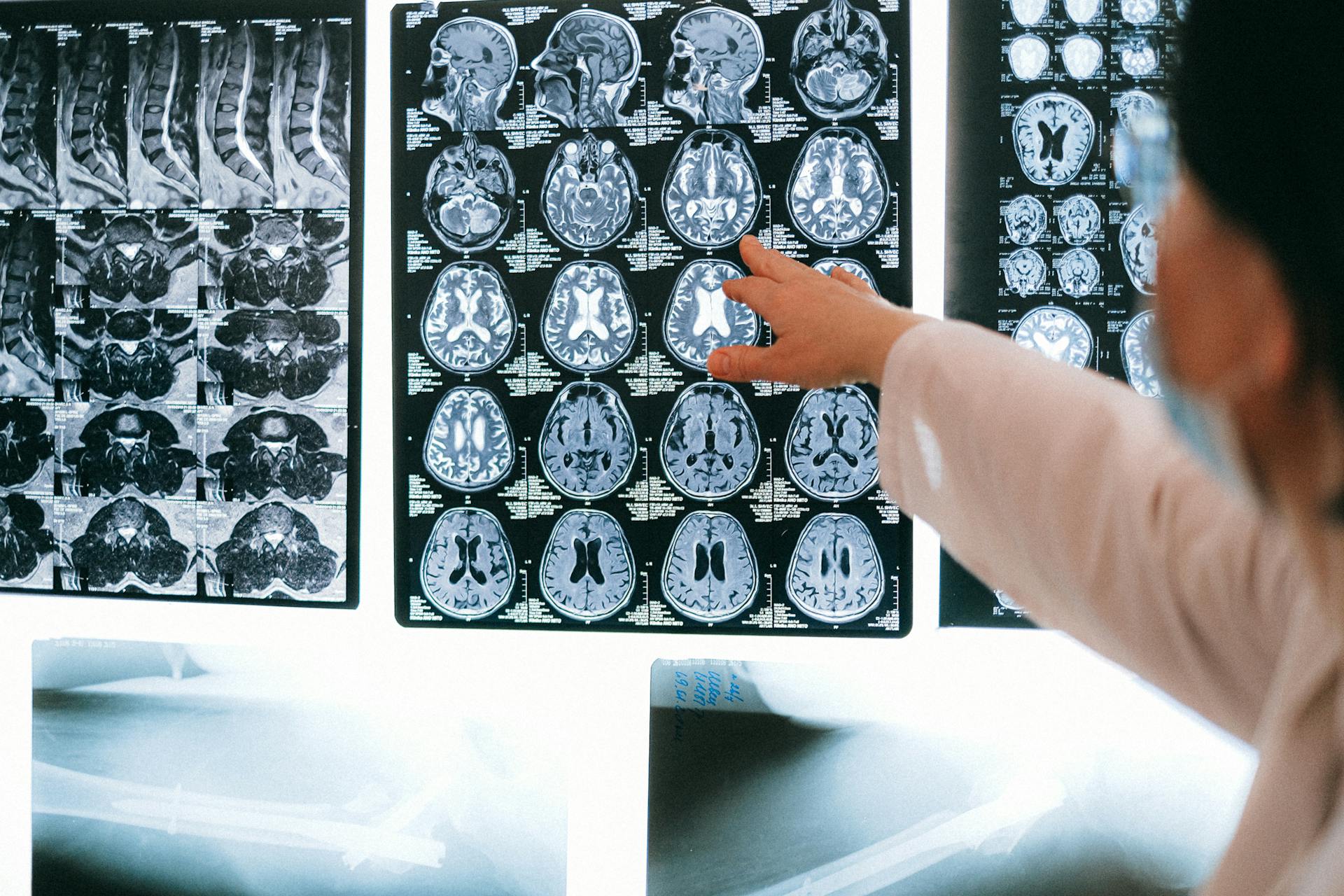
Hospitals and imaging centers often hand you a CD or USB full of DICOM files — and then leave you with a question: how do I actually view these images?
Traditional solutions require installing heavy desktop software, configuring PACS connections, or paying for a full workstation license.
With Fileverter’s online DICOM viewer, you can open CT, MRI, X‑ray and other DICOM studies directly in your browser. No installation, no registration, and—most importantly—no file uploads to a remote server.
This guide explains, in practical terms:
- What you can do with the DICOM viewer (beyond “just opening a file”).
- How to load and navigate real studies from CDs, USB drives or PACS exports.
- How to use window/level presets, cine playback, measurements and metadata.
- What the privacy model looks like, and where the limits are.
What You Can Do With a Browser‑Based DICOM Viewer
Fileverter’s DICOM viewer is built on top of Cornerstone.js and runs entirely in the browser. For day‑to‑day use, that means you can:
- Open
.dcmor.dicomfiles from CT, MRI, X‑ray, ultrasound, mammography and more. - Scroll through multi‑frame or multi‑slice series (like a CT stack) using frame controls.
- Adjust window width and level (WW/WL) using your mouse or dedicated sliders.
- Apply modality‑specific presets (brain, lung, bone, T1, T2, etc.).
- Take basic measurements (length, angle, ROIs) directly on the image.
- Export the current view as a PNG and DICOM tags as JSON or CSV.
All of this happens in a modern, responsive UI that works on Mac, Windows, Linux and many tablets.
Step‑by‑Step: How to Open a DICOM File in Your Browser
1. Locate Your DICOM Files
You’ll usually find DICOM files:
- On a CD or DVD given to you by a hospital.
- On a USB stick or secure download link.
- As
.dcmor.dicomfiles inside folders likeDICOM,IMAGES, or similar.
Sometimes there’s also a DICOMDIR file that describes all studies on the media.
2. Open the Online Viewer
Go to the DICOM viewer:
You’ll see a file input panel and a short description explaining that CT, MRI, and X‑ray images can be viewed directly in the browser.
3. Load a DICOM File
You have two options:
- Click the file picker and select one or more
.dcm/.dicomfiles, or - Drag and drop a file from your file explorer onto the upload area.
After choosing a file, the viewer:
- Parses the DICOM dataset.
- Sets up an internal stack if the file contains multiple frames.
- Prepares the Cornerstone viewport to render the image(s).
If the file is valid, you’ll see your medical image appear on a black background.
4. Use the Viewer Tools: Brightness, Zoom, Pan
Once your image is visible, use the toolbar below the viewport:
- Brightness (Window/Level) – Adjust contrast by clicking the Brightness tool and dragging on the image or using the Width/Center sliders on the right.
- Pan – Reposition the image within the viewport.
- Zoom – Zoom in and out, either via the Zoom tool or the zoom in/out buttons.
The viewer always keeps your image sharp using pixel‑perfect rendering settings, so zooming in doesn’t introduce artificial smoothing.
5. Scroll Through Slices or Frames
CT and MRI studies often contain tens or hundreds of slices. The viewer exposes this as a frame stack:
- Use the Previous / Next buttons in the “Frames” section to move through slices.
- Watch the index display (e.g.
12 / 80) to know where you are in the series.
If your dataset is multi‑frame DICOM, the viewer automatically expands these frames into a navigable stack internally, so you don’t have to think about frame indices or image IDs.
6. Play a Cine Loop
For CT, MR, or ultrasound loops, you can use cine playback:
- In the Cine section:
- Click Play to cycle through frames automatically.
- Click Pause to stop.
- Adjust the speed slider (frames per second) to make the loop faster or slower.
This is especially useful for:
- Cardiac CT or MRI sequences.
- Dynamic contrast studies.
- Ultrasound clips stored as multi‑frame DICOM.
Getting Useful Clinical Information: Window/Level Presets & Measurements
The real power of Fileverter’s viewer is in its presets and measurement tools, not just basic image display.
Window/Level Presets Per Modality
Different modalities and body parts require different window/level ranges. The viewer exposes preset buttons on the right that adapt to the loaded modality:
- For CT you’ll see presets like:
- Brain
- Lung
- Bone
- Abdomen
- For MRI you’ll see:
- T1
- T2
- FLAIR
When you click a preset:
- The viewer sets the internal VOI range for the viewport.
- The width and center sliders update accordingly.
- The image re‑renders with optimal contrast for that use case.
You can then fine‑tune the sliders if needed. The viewer stores the initial window and level so you can always reset back to the first good view.
Basic Measurements: Length, Angles, ROIs and Probe
From the Measurements toolbar, you can select:
- Length – Draw a line to measure distances (e.g. lesion size).
- Angle – Click three points to measure angles (useful for scoliosis, joint alignment, etc.).
- Rectangle ROI – Draw a rectangular region to get statistics like mean and standard deviation.
- Ellipse ROI – Similar to rectangle but elliptical; handy for nodules or circular structures.
- Probe – Click a point to get the pixel value / HU at that location.
Each tool is fully integrated with Cornerstone’s measurement system:
- Multiple annotations can be drawn on the same slice.
- You can clear all measurements with one click.
- You can reset the view to default zoom and pan if things get messy.
For teaching cases or self‑study, these tools are often sufficient to discuss findings without opening a full PACS workstation.
Inspecting DICOM Metadata Safely
Sometimes you don’t just want the image—you need the metadata: acquisition parameters, patient info, and scanner details.
Click the Metadata tab to see a structured breakdown:
- Patient: name, ID, birth date, sex, age (if present in the header).
- Study: date, time, modality, body part, institution, description.
- Image: rows, columns, bits allocated, photometric interpretation, etc.
Beneath that, you’ll find a complete tag browser:
- Search by tag, name or value using the search box.
- Scroll through all DICOM tags with their codes, names, VR and values.
- Export:
- JSON for structured analysis or development work.
- CSV for Excel, research logs, or documentation.
This is extremely useful for:
- Researchers checking protocol parameters.
- Developers validating DICOM exports from custom software.
- Students learning how DICOM headers are structured.
Note: The viewer also includes an internal PHI detection report that flags obvious identifiers in headers. It’s a helpful signal, but not a replacement for a full anonymization pipeline—especially if patient information is burned into the image pixels.
Privacy and Security: Why Local Processing Matters
Many “online” DICOM viewers upload files to their servers, process them there, and then render results back in the browser. That can be risky for sensitive patient data.
Fileverter’s DICOM viewer is intentionally different:
- All processing happens in your browser using WebAssembly and JavaScript.
- DICOM files are held in memory only and not sent to a backend.
- There is no account or login required, reducing stored data exposure.
In practice, that means:
- You can review images on your own machine without involving a third‑party cloud.
- It fits better with privacy‑conscious and HIPAA‑aware workflows.
- The main risk surface is your local device, not someone else’s server.
You should still:
- Avoid loading PHI on shared or public computers when possible.
- Remove temporary downloads from computers you don’t control.
- Use certified, clinical systems for primary diagnosis.
Who Is This Viewer For?
Different user groups benefit in different ways:
- Clinicians and radiologists
- Quick look at outside CDs or USBs without tying up a workstation.
- Teaching sessions or case discussions on a projector or laptop.
- Medical students and residents
- Practice reading CT/MRI/X‑ray studies with real WW/WL control and measurements.
- Explore header metadata to understand imaging protocols.
- Patients and families
- Open and understand their own scans from CDs without installing anything.
- Capture screenshots or export PNGs to discuss findings with other doctors.
- Developers and imaging IT
- Inspect exported DICOM files for tag correctness and structure.
- Validate multi‑frame behavior, window presets, and header contents.
For formal clinical reporting and regulated workflows, you should still rely on certified PACS software—but for viewing, learning, and quick review, a browser‑based approach is often faster and simpler.
Limitations and When to Use Desktop/PACS Software
Even though Fileverter’s viewer is powerful, it deliberately focuses on 2D DICOM viewing:
- No full 3D volume rendering or MPR yet.
- No server‑side PACS querying (C‑FIND, C‑MOVE, C‑STORE).
- No automated anonymization of burned‑in PHI in the pixel data.
For:
- Advanced 3D reconstructions,
- Integrated PACS workflows, or
- Certified diagnostic use,
you’ll still want tools like OsiriX/Horos, RadiAnt, 3D Slicer, or your hospital’s own PACS system.
Use Fileverter when you need:
- A fast, zero‑install way to open and inspect a DICOM study.
- A teaching/learning environment that runs on any modern browser.
- A privacy‑respecting viewer for ad‑hoc review.
Summary: A Practical Way to View DICOM in the Browser
You don’t need to fight with installers or licenses just to see your medical images:
- Open the DICOM Viewer page.
- Load
.dcm/.dicomfiles from CT, MRI, X‑ray or ultrasound. - Use window/level presets, measurements, cine playback and metadata export to get real value from your data.
For quick access, teaching, research, and patient self‑review, a browser‑based DICOM viewer gives you a professional‑feeling workflow with almost no friction—all while keeping your images on your own machine.